Issue Order for Jira icon

Issue Order for Jira

Jira App Runs on Atlassian

Order an epic’s child issues

Drag one or several child issues into place, move them to another epic, or sort them by priority or due date. Save once, and Jira’s boards and backlogs follow.

Highlights

Rank an epic’s child issues in one place.

Jira lets you drag sub-tasks into order, but not an epic’s child issues in company-managed spaces. Issue Order fills that gap.
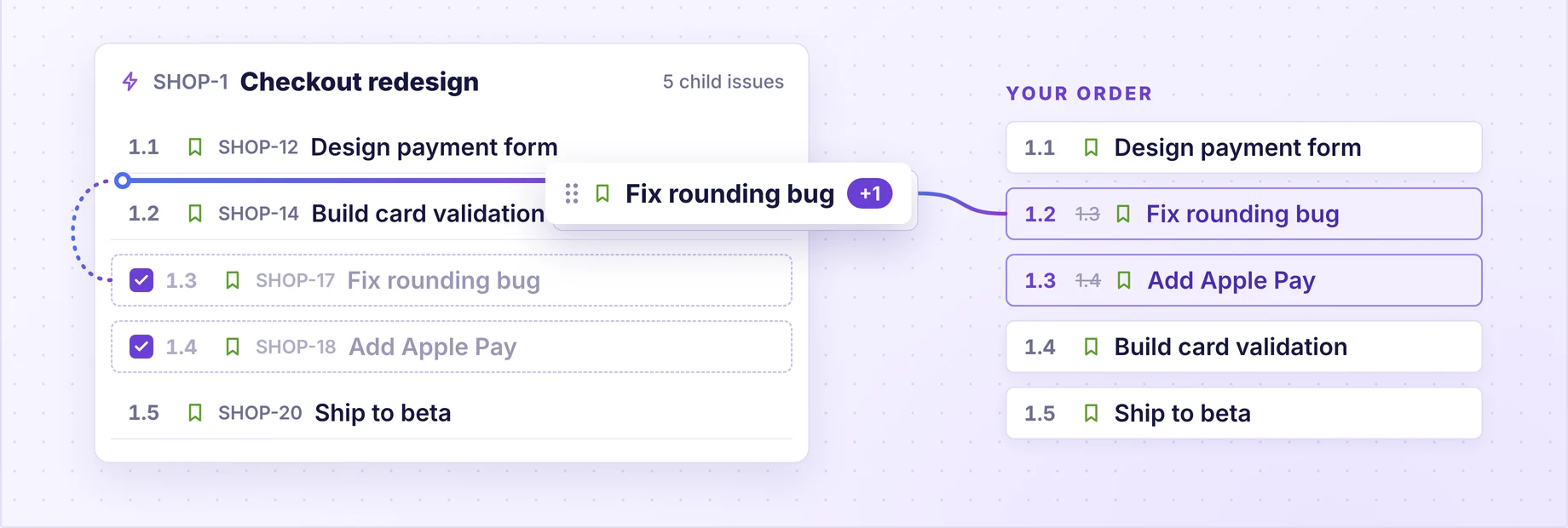
SHOP-1 Checkout redesign with two ticked child issues dragged above Build card validation, and the order they land in

Reorder

Drag an epic’s child issues into order

Open one epic, or a whole space as one numbered outline. Tick several issues to drag them together, even in company-managed spaces, where Jira can’t.
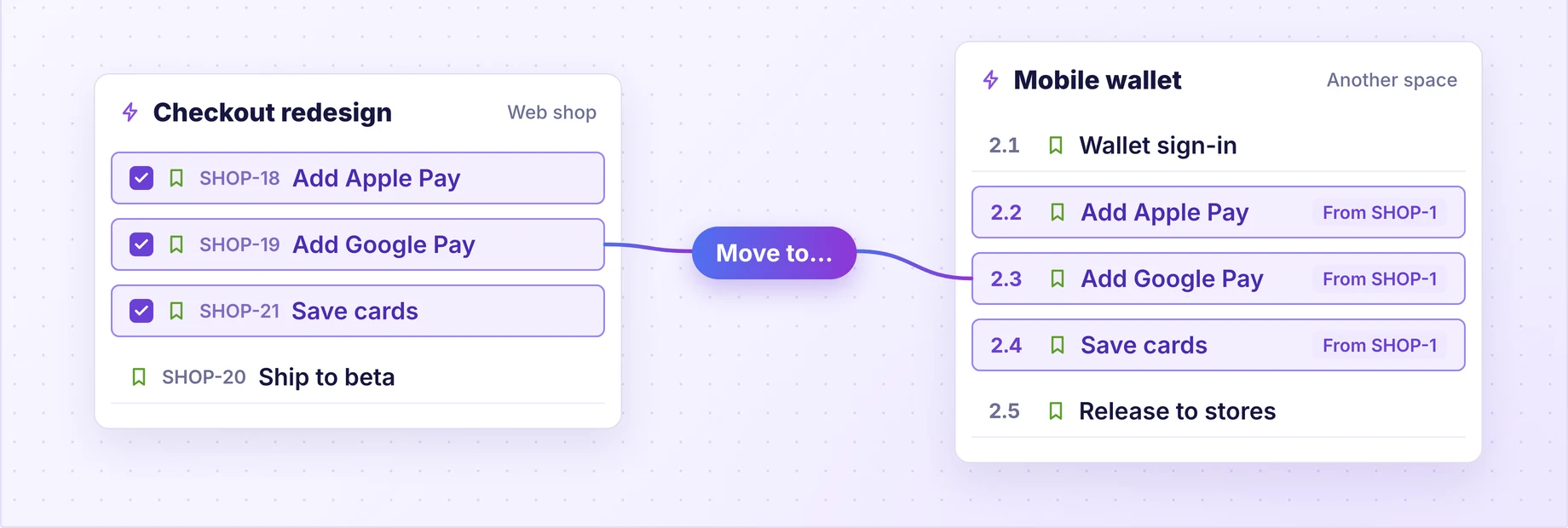
Three ticked child issues of Checkout redesign sent with Move to into the epic Mobile wallet, in another space

Move to epic

Move child issues to another epic

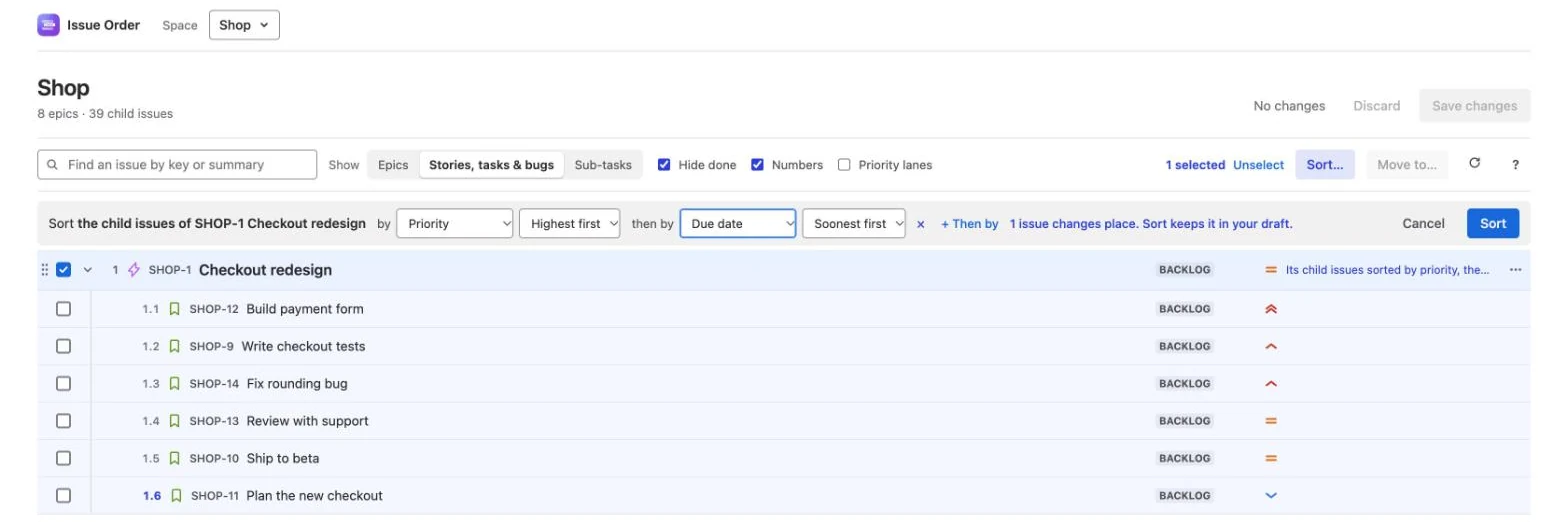
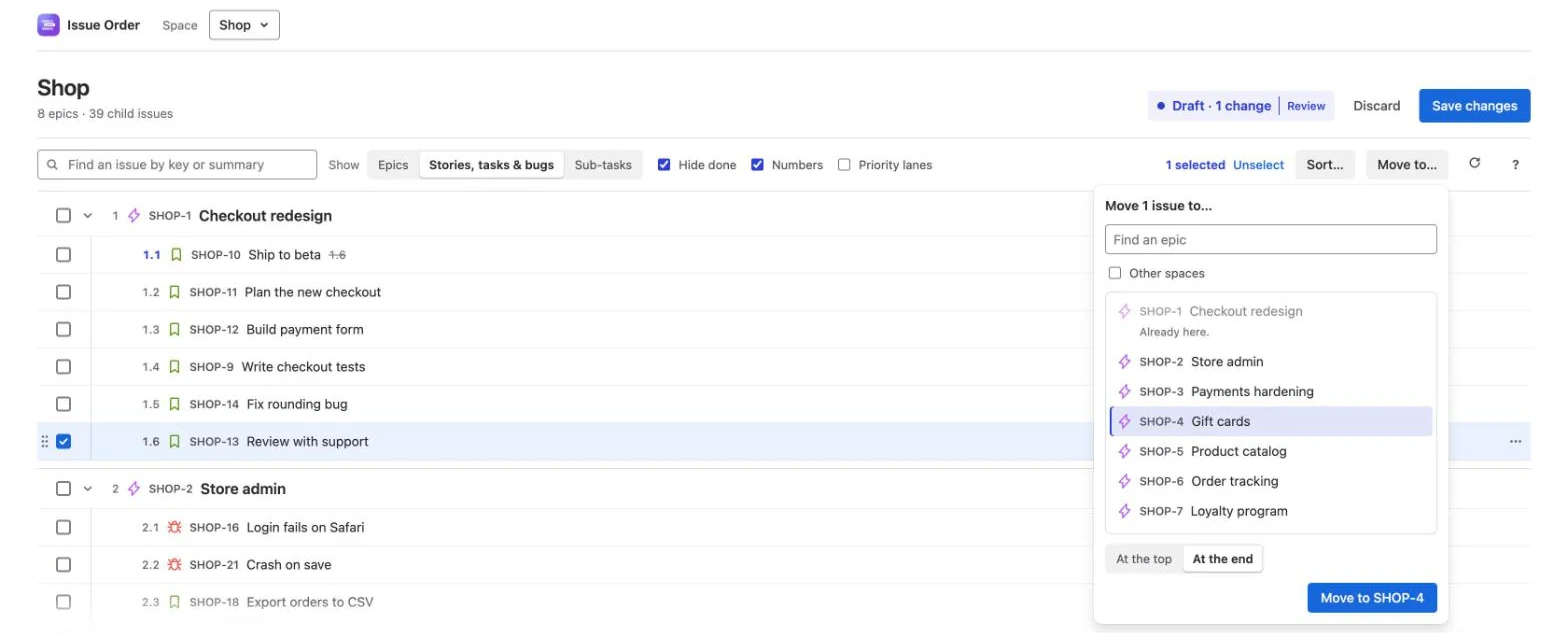
Drop ticked issues onto another epic, or pick one with Move to…, even in another company-managed space. Or sort them by priority, due date or story points.
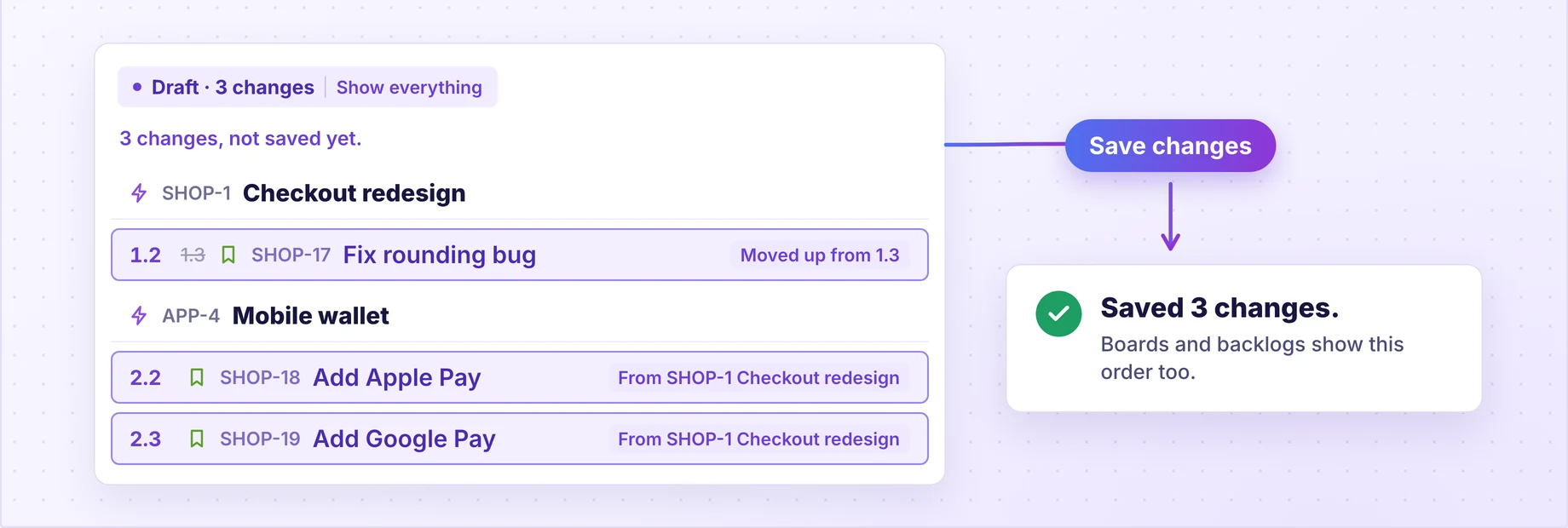
The draft showing 3 changes, each with its old number or the epic it came from, then Save changes and Saved 3 changes

Review

Review, then save in one go

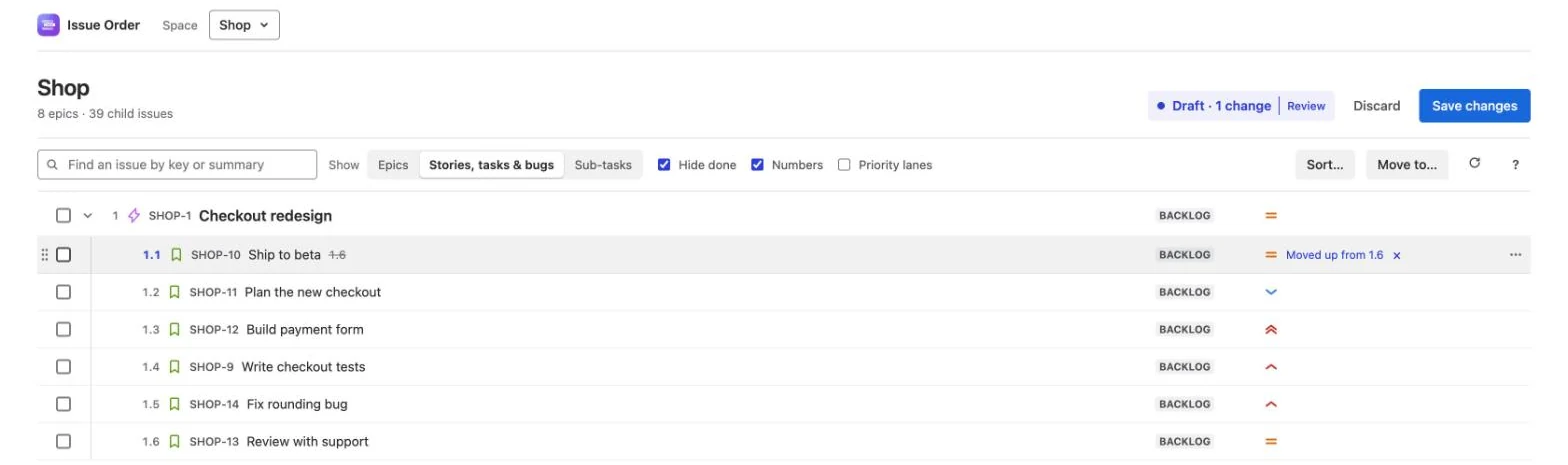
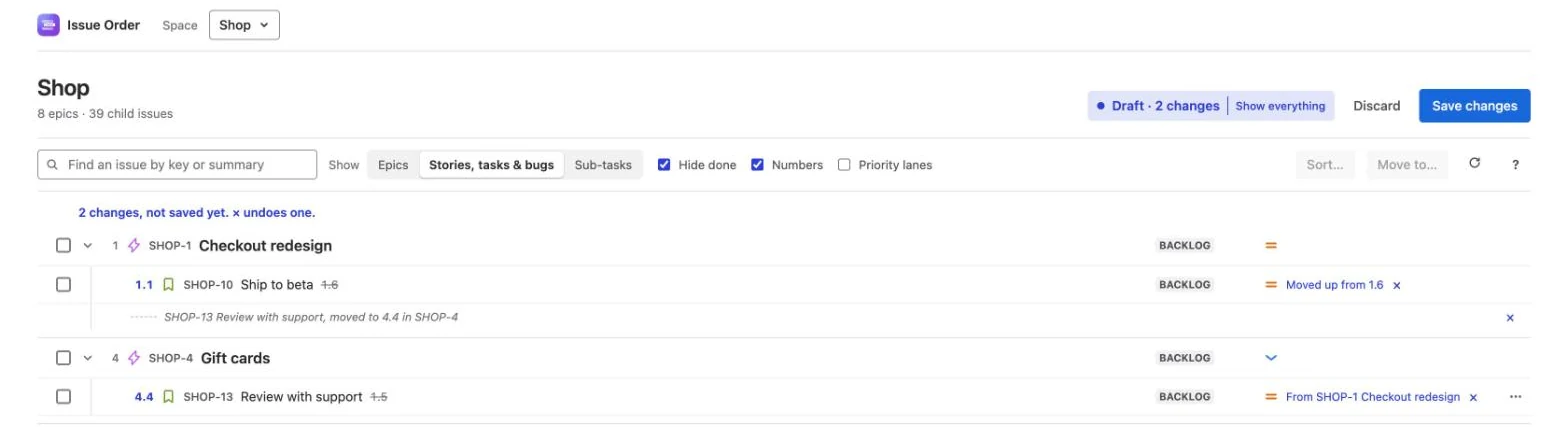
Each change shows its new number, the old one struck through, and where it came from. One save writes them all to Jira.

1,000 issues a listEach list shows its first 1,000 issues in Rank order. Hide done keeps finished work out of the way.
Your permissionsIt acts as you, so people only reorder issues they could already rank on a board.
No databaseNothing is kept on a server. Unsaved changes wait in your browser until you save.
Runs on AtlassianBuilt on Forge — no external servers, no data leaving Jira.
Every limit, and what happens at each →

How It Works

Draft the new order. One save updates Jira’s Rank.

Nothing changes in Jira until you press Save changes — every move waits in your draft first.
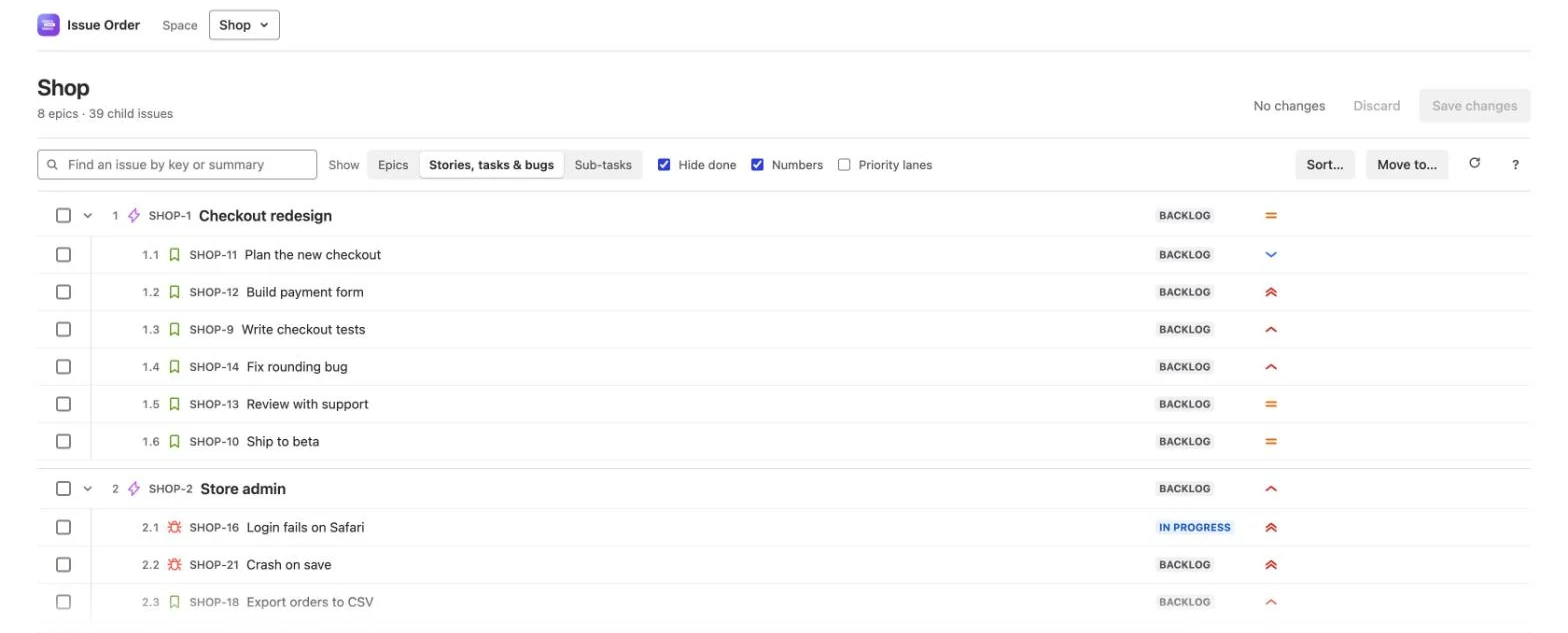
Step 1 — Open: the Shop space as one numbered outline, each epic followed by its child issues
Step 2 — Drag: two ticked child issues dragged as one, with a line showing where they land
Step 3 — Sort: the child issues of SHOP-1 Checkout redesign sorted by priority, then by due date
Step 4 — Move to: choosing the epic the ticked issues will join
Step 5 — Review: the two unsaved changes, each with its old number, ready to save

Pricing

Simple, usage-based pricing

Free for teams up to 10 users.

Enter your team size to see your estimate.

Estimate your cost

Best for a single Jira instance

Free for teams up to 10 users — no credit card needed.

Monthly Estimate

Adjust the sliders to see
your live cost estimate.

FAQ

Frequently Asked Questions

Yes. Issue Order acts as you. Reordering needs Schedule issues and Edit issues in the space, the same as ranking on a board; without them the order shows but can’t be changed.
Yes. A save writes Jira’s own Rank, which the epic’s child list, boards and backlogs all sort by. Issues you didn’t touch keep their places.
Yes, in company-managed and team-managed software and business spaces. Moving issues to an epic in another space works between company-managed spaces only, as in Jira. See every limit.
Yes. Built on Atlassian Forge, it runs entirely on Atlassian’s own infrastructure. It keeps no data of its own and sends nothing outside Jira.
Yes — free for teams up to 10 users, with no credit card. Above that, per-user pricing is billed by the Atlassian Marketplace; the calculator above shows your estimate.

More answers in the documentation FAQ →

Put every epic in order in minutes.

Questions? Email support@datapingo.com or open a support requestWe typically reply within one business day.