.png)
Step 1 — Select
Find the issues you want and tick up to 25 — search, the four filters, sort, and the tray that counts against the ceiling.
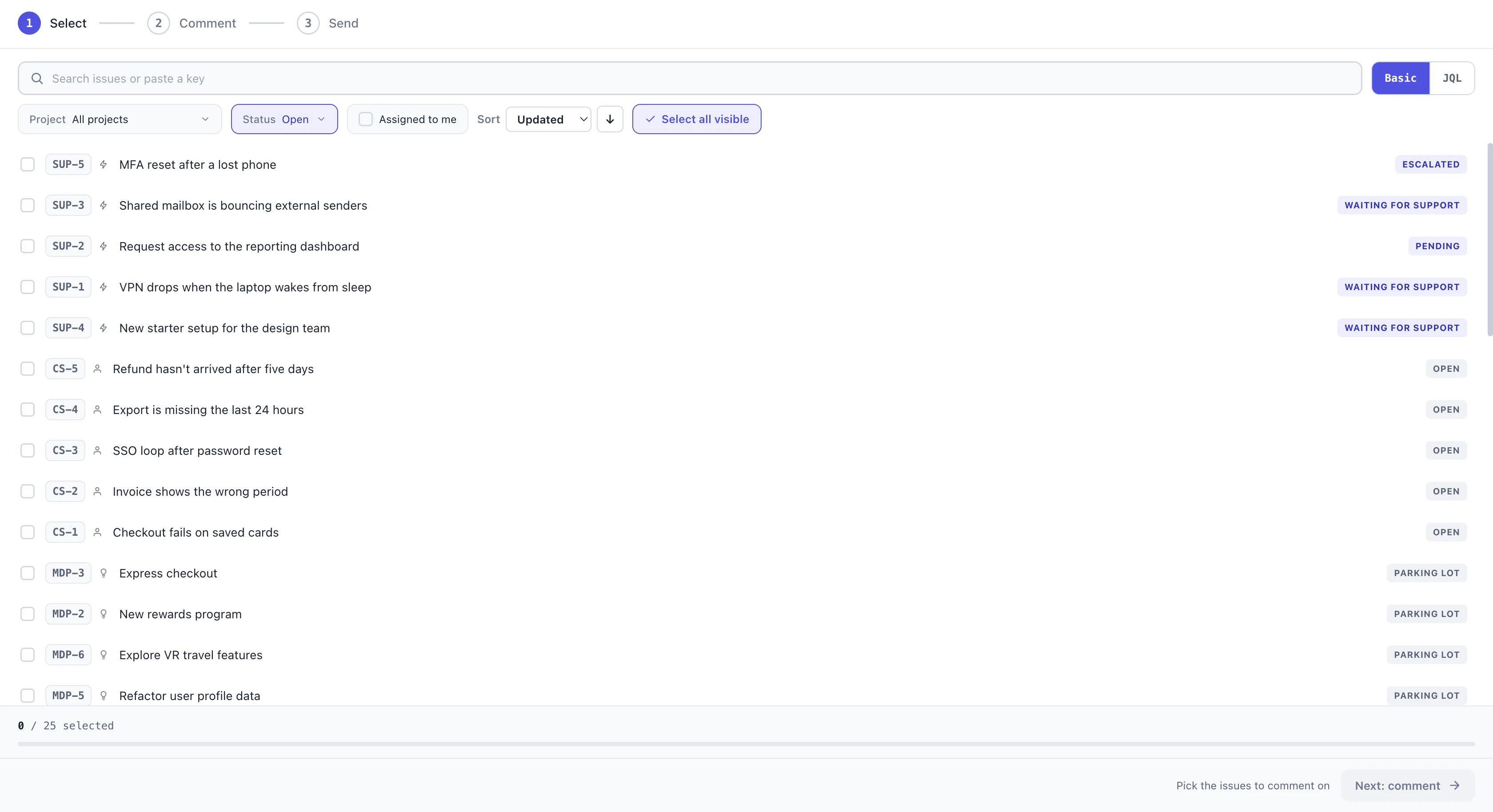
Find the issues you want and tick up to 25 of them. Everything you can see in Jira is listed by default; the controls along the top narrow it down, and the tray along the bottom holds everything you have picked — even across several different searches — and counts it against the 25.
More than 25? Send in batches. Filter down to the first 25 — Select all visible with a project or status filter takes a whole group in two clicks — send them, then press Done and pick the next 25. Anything you wrote on issues you have not sent yet is kept, so you can build the next batch straight away.
Search, filter and sort the issue list
The controls along the top of the Select step, left to right. Every one is applied inside the Jira query rather than to the rows already on screen, so they reorder the whole result set.
- Search — by keyword or issue key, in Basic or JQL mode. Filtering and sorting happen inside the query, so they reorder the whole result set rather than the rows on screen.
A full issue key ignores every filter. Type MYQ-3 and you get it, even if it is Done or in a filtered-out project. A partial key is a project prefix and does respect filters, as does keyword search — which matches the summary, not the description.
In JQL mode the query is authoritative, so the project, status, assignee and sort controls disappear. Enter runs it; ⇧Enter is a new line.
- Project — defaults to All projects, and appears once you have seen more than one. The list only ever grows, so narrowing to one never strands you. It carries its own Search projects field, matching name or key.
Every row carries a small mark before its summary, so a mixed list stays readable at a glance:
- Lightning bolt — Jira Service Management
- Person — Customer Service Management
- Lightbulb — Jira Product Discovery
- No mark — Jira, the ordinary case
The mark matters because it tells you which issues will offer a Reply to customer choice on the next step. Only the first two ever do.
- Status — tick what you want to see. The names come from each project’s workflow, not the rows loaded, so you get your own wording and can filter to a status with nothing on screen yet. Narrowing the project narrows this list too. Done is hidden by default. Three shortcuts:
- Select all / Deselect all — one toggle at the top of the list, which flips depending on where you are
- Only — every status carries one, with a count beside it. It jumps straight to that single status instead of making you untick the other nine
- Reset to open issues — back to the default in one press
The header then reads how many you have hidden, so a filtered list never looks like an empty one — and if you switch every status off, it says No statuses selected, so no issues can match. Pick at least one. rather than showing you a blank list with no explanation. Statuses with nothing in them collapse behind a Show n empty statuses line.
- Assigned to me — off by default, so you see everyone’s issues. One click narrows the list to only the issues assigned to you; click again to see everyone’s.
- Sort — three fields, each taking its natural direction first:
- Updated — most recently changed first
- Issue key — by key, so a project’s issues run in order
- Summary — alphabetical, A–Z
The arrow beside the field flips between ascending and descending.
- Select all visible — ticks every issue currently on screen, up to the 25 ceiling. Once everything visible is picked it flips to Deselect all and clears them, so it is its own undo. Pair it with the project filter and you can take a whole project in two clicks.
The selection tray, and the 25 ceiling
The tray along the bottom lists every issue you have picked, no matter which search you found it in — so a selection built from three different queries is still visible in one place, with the counter reading n / 25 selected. Press the × on any chip to drop that issue without going back to hunt for it.
At 25 — the ceiling is on issues, not comments — the unpicked rows dim and explain themselves with Selection is limited to 25. Select all visible flips to Deselect all.
What happens when you open the app
When you open the app the previous list paints immediately from your browser while the fresh search runs behind it. Every issue carried over from a draft is checked against Jira at the same time; anything deleted or out of reach is dropped with a notice naming it — PAY-412 is no longer available — removed.