
Where to open it
Two ways into the app, where each one starts, and when to use which.
Two ways in
- Open an issue’s ••• menu and choose Reorder child issues.
- Open Apps in Jira’s sidebar, choose Issue Order for Jira, then a space.
Both open the same organizer: a numbered outline in Rank order, with the same toolbar. They differ in where it starts. Each keeps its own draft, so changes made in the pop-up don’t show on the Apps page until you save them. Whichever you use, nothing changes in Jira until you press Save changes.
Both work in Jira’s software and business spaces, company-managed or team-managed. The ••• action doesn’t appear in Jira Service Management (JSM), Customer Service Management or Jira Product Discovery spaces, and the Apps page doesn’t list those spaces. This only limits where you open it from: a request from one of those spaces that sits under an epic in a software or business space still shows in that epic’s list.
From an issue: Reorder child issues
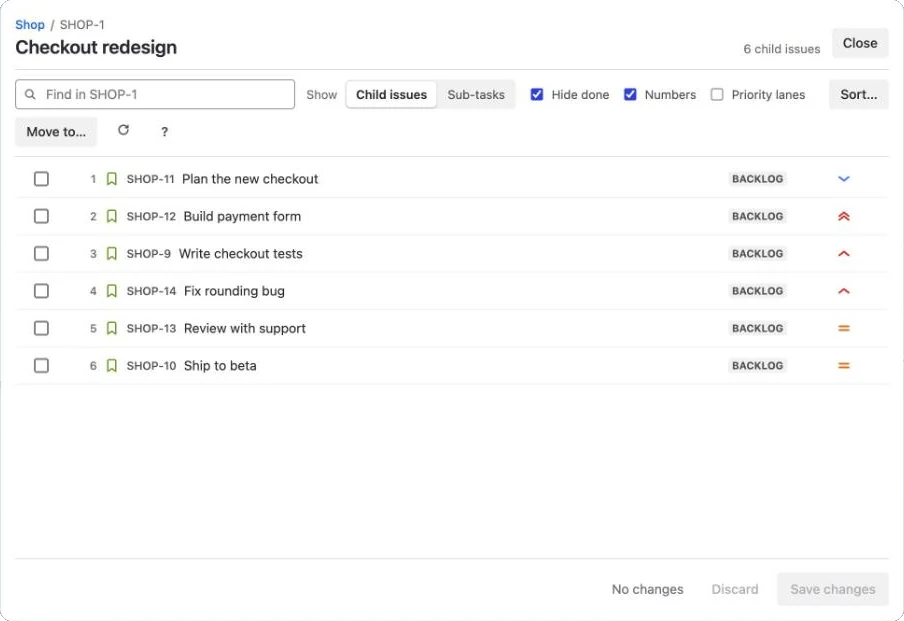
Open the issue whose child issues you want in order, open its ••• menu and choose Reorder child issues. The organizer opens in a large pop-up over the issue, already on that issue’s own list. It’s the quickest way in when you know which epic is out of order.
What the pop-up shows
| Opened on… | It shows |
|---|---|
| An epic | Its child issues, numbered 1, 2, 3… Show offers Child issues and Sub-tasks. |
| A story, task or bug | Its sub-tasks. |
| An issue on the level above epics (an initiative, on sites that have one) | Its epics, with Epics, Child issues and Sub-tasks under Show. |
| A sub-task | Nothing to order: Sub-tasks don’t have child issues. Open this on the issue above it to reorder its sub-tasks. |
The header shows where you are (Shop / SHOP-1), the issue’s summary, a count such as 6 child issues, and Close. The footer holds the status line and the draft: No changes or Draft · n changes, then Discard and Save changes. An issue with nothing under it says so, for example SHOP-7 has no child issues yet.
Zoom out to the whole space
The space’s name in the breadcrumb is a link; its tooltip reads See the whole space. It shows the whole space in the pop-up, the way the Apps page does: every epic, with Without an epic at the bottom. Back to SHOP-1 takes you back to the issue you opened.
Your unsaved changes come with you both ways. Move a child issue to another epic, zoom out to put it in place there, and save everything together.
Close
Close takes you back to the issue. With unsaved changes it asks first — Leave without saving? Your n changes will be lost. — with Keep editing and Leave without saving. It can’t be pressed while a save is running.
If you saved, Jira refreshes the issue as the pop-up closes, so its Child work items or sub-task list shows the new order straight away. Where Jira can’t refresh that view, the new order shows the next time the issue opens.
From Apps: Issue Order for Jira
Issue Order for Jira under Apps opens the organizer on a full page. Use it to work on a whole space: its epics, their child issues and sub-tasks in one outline.
Choose a space
The first time, the page opens on Choose a space: the Jira spaces you can see, A to Z by name. Only software and business spaces are listed, each with its type and how it’s managed, such as Software · Company-managed or Business · Team-managed.
- Find a space filters by any part of a space’s name, or by its whole key in any case.
- Click a space to open it. The bar at the top then shows Space and a button with the space’s name: click it to switch to another space.
- It remembers your space. Next time, the page opens straight on the space you used last. Your browser keeps it, for each Jira site. If that space is gone, or you can no longer see it, you choose again.
- Switching with unsaved changes asks first — Switch to …? Your unsaved changes in … will be lost. — with Keep editing and Switch and discard. While a save or a Refresh from Jira is running, the space button does nothing; its tooltip reads Wait for the save to finish.
What a space opens on
- A space with epics opens on its epics, numbered 1, 2, 3 in Rank order. The header counts them, then their child issues once those are loaded (8 epics · 39 child issues), and holds the draft and Save changes.
- Show picks how deep the outline opens: Epics, then the level below, named after the space’s own work types (Stories, tasks & bugs, for example), then Sub-tasks. The first time, it shows epics only; after that your browser remembers your choice.
- At the bottom, Without an epic lists the space’s issues that have no epic, numbered on their own. Under epics in other spaces appears only when some of the space’s issues sit under an epic in another space, and each one says which epic.
- A space with no epic level, or no epics yet, opens on its issues instead, with Show named after its types. Business spaces often have only tasks and sub-tasks, so they open on their tasks.
Which one to use
| You want to… | Use |
|---|---|
| Put the child issues of the epic you’re reading in order | ••• → Reorder child issues on the epic |
| Reorder a story’s sub-tasks | ••• → Reorder child issues on the story |
| Reorder the epics themselves, or drag issues from one epic to another | Issue Order for Jira under Apps, or the breadcrumb in the pop-up |
| Sort the child issues of every epic in a space at once | Issue Order for Jira under Apps |
| Work through several spaces, one after another | Issue Order for Jira under Apps, switching with the space button |