User guide
Arrange the outline, review your draft, then save it to Jira in one go.
Overview
Put an epic’s child issues in the order you want, and save them to Jira in one go.
Jira lets you drag sub-tasks into order, but not the child issues of an epic in a company-managed space. The epic’s Child work items list shows them in Rank order, and you can’t rearrange them there.
Issue Order for Jira shows a space, or one epic, as a numbered outline in that same Rank order. Drag child issues into place, tick several and move them together, or send them to another epic with Move to…, even one in another company-managed space. Sort… orders them by priority, due date, status or the space’s own fields such as story points, up to three levels deep. Turn on priority lanes and each epic’s child issues are put in priority order, grouped by priority.
Nothing changes in Jira until you press Save changes. Until then every change is a draft, marked in the outline so you can check it. A save writes Jira’s own Rank, plus any new parents and priorities, so the epic’s child list, boards and backlogs all show the new order.
The app acts as you, so you can only reorder issues you could already rank on a board. It stores nothing outside your browser and runs on Atlassian, with no server of its own. It works in software and business spaces, company-managed and team-managed.
Your first reorder in a minute
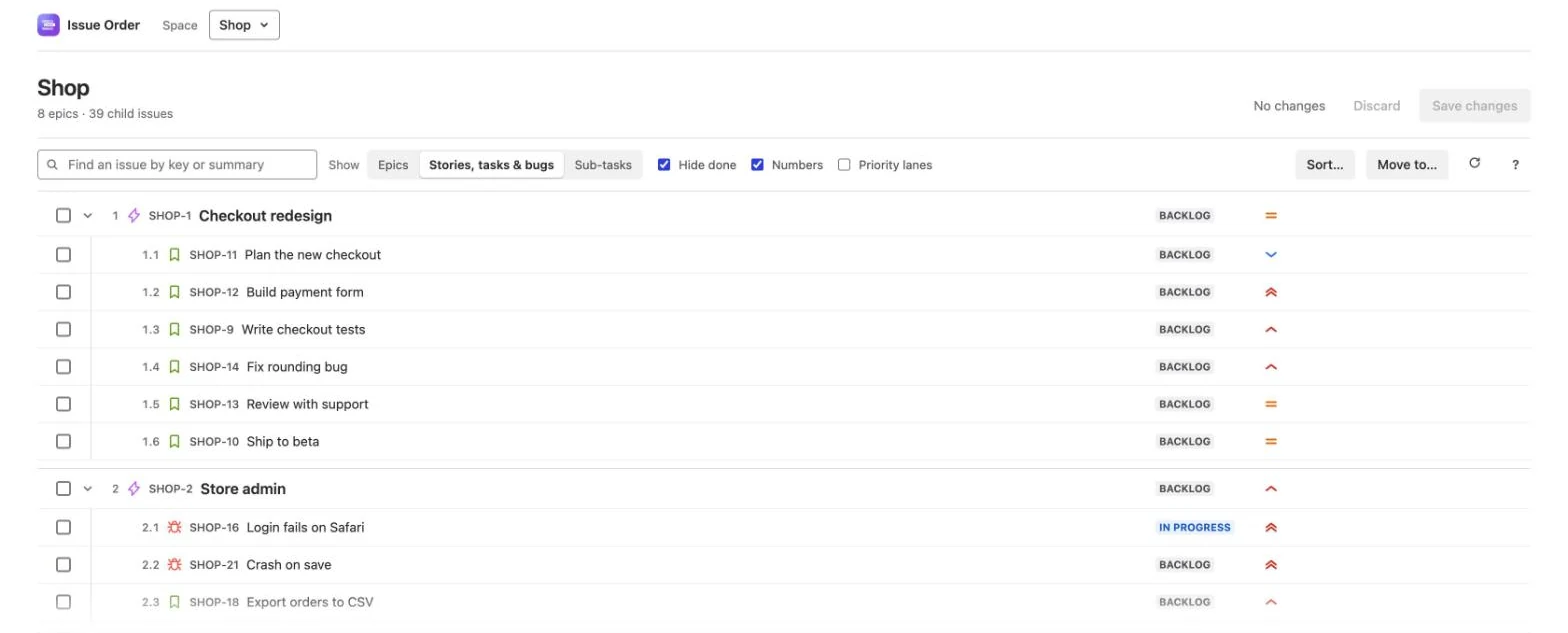
Say the epic Checkout redesign (SHOP-1) has six child issues, and Jira has them in this order: Plan the new checkout, Build payment form, Write checkout tests, Fix rounding bug, Review with support, Ship to beta. Ship to beta should come first.
- Open Checkout redesign in Jira, open its ••• menu and choose Reorder child issues. A pop-up lists the six child issues, numbered 1 to 6, in the same order as Jira’s Child work items.
- Point at Ship to beta (6). Press the grip that appears at its left edge and drag it up until a line shows above Plan the new checkout. The label beside the pointer ends → 1. Let go.
- Ship to beta is now 1, with its number in blue, the old 6 struck through and the note Moved up from 6. The footer reads Draft · 1 change. Nothing has changed in Jira yet.
- Click Save changes. The footer shows Checking Jira…, then Saving changes…, and the status line says Saved 1 change. Boards and backlogs show this order too.
- Click Close. Jira refreshes the epic, and its Child work items list now starts with Ship to beta. In the space’s backlog, Ship to beta now sits directly above Plan the new checkout too.
Reordering needs the Schedule issues and Edit issues permissions in that space. Without them you can see the outline but not change it — see the Admin guide.
Issue Order for Jira shows a space, or one issue, as one numbered outline in Rank order: epics 1, 2, 3, their child issues 1.1, 1.2, and sub-tasks 1.1.1. Each number is an issue’s place in Jira’s own Rank under its parent, so the outline matches the epic’s child list, boards and backlogs. If you haven’t opened the app yet, here are the two ways in.
Every job runs the same way:
- Arrange. Tick issues and drag them to a new place or onto another epic, or use Move to… to send them to another epic, even one in another company-managed space. Sort… orders a list by up to three fields, with a preview. Turn on Priority lanes to put each epic’s child issues, and their sub-tasks, in priority order, grouped into lanes.
- Review. Every change is a draft, marked in place: the new number in blue, the old one struck through, a note with × to undo it, and a faint line where an issue left. Click Draft · n changes to Review them: the outline then shows only what you changed.
- Save. Nothing changes in Jira until you press Save changes. The save checks that nobody changed the order meanwhile, then writes Jira’s Rank, plus any new parents and priorities, as you.