
Review and save
See every change before it reaches Jira, take back what you don't want, and save it all in one go.
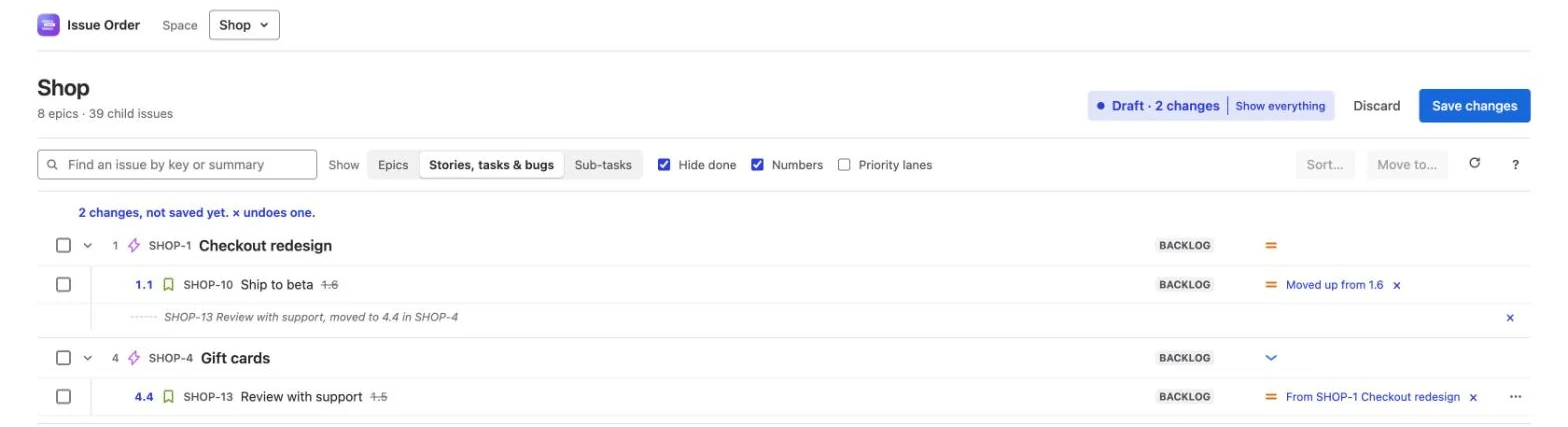
Nothing changes in Jira until you press Save changes. Every drag, Move to…, sort and priority-lane change in Issue Order for Jira is a draft. Each one is marked in the outline where it happens, Review shows just your changes, and one save writes them all.
Keep the tab open while it saves. The save runs in your browser, so closing the tab part way stops it there. See Keep the tab open.
The draft
With your first change, the draft shows Draft · n changes beside Discard and Save changes: at the top of the Apps page, or in the footer of the Reorder child issues pop-up. With nothing staged it reads No changes, and both buttons are off.
The count is the issues you moved, plus one for each priority change. Issues that only shift because another one moved get a new number but aren’t counted, so dragging one issue to the top counts one, and a sort counts each issue it really moves.
The draft is yours alone: nobody else sees it until you save. In the pop-up it holds everything you change there, also after the breadcrumb takes you out to the whole space. On the Apps page it belongs to one space, and switching space asks first (see Leaving with unsaved changes).
How changes are marked
A change reads like a correction on a printed page: the new number in blue, the old one struck through, and a short note on the row.
| The row shows | What it means |
|---|---|
| A new number in blue, the old one struck through | The issue’s new place, and its place in Jira’s order now. Numbers show while Numbers is ticked. |
| Moved up from 1.6 / Moved down from 1.1 | You moved it within its own list. With Numbers unticked, the note is just Moved up or Moved down. |
| From SHOP-1 Checkout redesign | It’s moving in from another epic or parent. |
| Was without an epic / Moved out of SHOP-1 / Was under key | It’s getting an epic; it’s losing its epic (it now shows under Without an epic); or it’s leaving an epic in another space. |
| A faint line, such as SHOP-13 Review with support, moved to 4.4 in SHOP-4 | Where an issue left. Several leaving for the same place share one line: 2 issues moved to SHOP-4 Gift cards. |
| Its child issues sorted by priority, 3 moved, on an epic’s row | You sorted that epic’s list. The issues the sort moved get blue numbers, but no note and no struck-through number of their own. A sort of the epics shows in the header instead, such as Epics sorted by priority, and a sort of Without an epic on its heading. A sort of an issue’s sub-tasks puts the same note, Its child issues sorted by …, on that issue’s row. In the pop-up, a sort of the issue’s own list shows above the outline: Child issues of SHOP-1 sorted by priority. |
| Priority Low → High | You dragged it into another priority lane, so its priority changes too. Its priority icon already shows the new one. See Priority lanes. |
| A note in red | Jira refused this change at the last save, and it’s still in your draft. See When some changes can’t be saved. |
Moving an issue within or into a list you sorted removes the sort’s note: from then on, every issue out of its old place, the sort’s included, gets a note of its own.
Take back a change
- The × at the end of a note (Undo this change) takes back that issue’s change. It goes back to its old place and parent, and keeps its old priority.
- The × on a faint line brings back the issues that left from there.
- The × on a sort’s note puts that list back in Jira’s order. Issues you moved into it stay in it.
- From the keyboard, a row’s ••• menu (Shift+F10) has Undo this change or Undo the sort on rows that have one.
- ⌘+Z (Ctrl+Z on Windows) undoes your last change, up to 100 steps back. ⌘+Shift+Z or ⌘+Y (Ctrl+Shift+Z or Ctrl+Y) redoes it. They leave the draft alone while you type in Find or a pop-up.
Undo only reaches the draft. Its history starts afresh after each save and each refresh, and nothing undoes a save.
Review your changes
Click Draft · n changes; its hint reads Review. The outline then shows only the rows you changed, the faint lines where issues left, and the epics they sit under. A line above it says n changes, not saved yet. × undoes one. The hint turns to Show everything: click it to see the whole outline again.
In Review you can undo, save or discard, but not make new changes:
- A drag doesn’t start, and the status line says Show everything to drag issues again. In Review you can undo changes or save.
- Sort… and Move to… are off.
- A row’s ••• menu offers only Open in a new tab and its undo items.
- Find and Show have no effect until you click Show everything.
Review ends by itself when you undo the last change. In the pop-up it shows what’s under the issue on screen. If you also changed things elsewhere in the space, it adds Some are outside SHOP-1. with See them in the whole space.
With Hide done ticked, a change to a done issue doesn’t show in Review. Untick it to see every change.
Discard
Discard drops every unsaved change at once, without asking, and deletes the copy kept in your browser. The status line says Discarded n changes. with Restore changes beside it, which brings them all back: Restored n changes. They’re still not saved. The link goes with your next change, undo or refresh. Neither touches Jira.
What Save does
Press Save changes. The draft reads Checking Jira…, then Saving changes… with a progress bar. The save runs in this order:
- It checks that nothing changed in Jira. Each list your changes touch is read again, straight from the issues, and compared with how it looked when it loaded. If any of them differs, nothing is written: see If the order changed in Jira. When the save will rank issues, the app also checks that Jira’s ranking is available to you.
- New parents. Each issue you moved to another epic or parent, or out of its epic, gets its new parent, four at a time.
- New priorities, from drags into other priority lanes, four at a time.
- Rank, one list at a time. Lists that only receive issues go first, then the lists you rearranged or sorted. For each one, the app reads the order Jira has at that moment and ranks only the issues that must move: the longest run already in the right order stays put, and the others are ranked next to it, up to 50 issues in one call. Then it reads the list back and, if Jira didn’t keep a batch in order, fixes it once, one issue at a time.
- It reads back every list it touched, so the outline shows what Jira has now.
Why this order? Giving an issue a new parent doesn’t move it in Jira’s order, so every list that receives issues also gets a Rank step, which puts them where you dropped them. And Rank is one order shared by the epic’s child list (“Child work items” in Jira’s newer screens), boards and backlogs, so the app ranks as few issues as it can and leaves the rest alone.
The app acts as you. Jira applies your own permissions to every change, and each one shows in the issue’s History under your name. When Jira says it is busy, the app waits and tries again, up to four times, so a short busy spell slows a save down rather than failing it.
While it saves, you can’t edit, discard, refresh, switch space or close the pop-up.
When it’s done
The status line says Saved n changes. Boards and backlogs show this order too. The marks clear and the draft reads No changes. In the pop-up, Close then refreshes the issue, so Jira’s own child list shows the new order straight away where Jira allows it, or the next time it loads.
There is no undo after a save. To go back, move the issues back and save again.
Keep the tab open
Issue Order has no server of its own: your browser makes every call to Jira, so a save runs only while the tab, or the pop-up, stays open. Close it part way and the save stops there. Changes already written stay in Jira; the rest aren’t made. Your browser may warn you before you leave while a save runs, but browsers can skip that warning for an app shown inside Jira.
The copy of your draft in this browser is still there, so opening the app in the same place offers it back (see below). Restoring puts back what still applies to the order Jira has now. Save again to finish.
When some changes can’t be saved
Each new parent, each new priority and each list’s new order succeeds or fails on its own, so one refusal never stops the rest. What Jira accepted is saved. What it refused stays in your draft, where you put it, with the reason in red: on the issue’s row for a new parent or priority, and on the epic’s row (or the issue’s, for its sub-tasks) for a list’s new order. A list with no row of its own, such as the space’s epics, gets no red note. The status line sums it up and repeats the first reason:
- Saved what Jira accepted. n changes couldn’t be saved and stay in your draft.
- Part of the new order was saved. … when a list’s new Rank was written only in part.
- Nothing was saved. … when Jira accepted none of it.
Here n counts what failed: each issue that didn’t get its new parent or priority, and each list whose new order didn’t go through, so it can differ from the draft’s count.
| The row says | What happened |
|---|---|
| Couldn’t move: and Jira’s reason | Jira refused the new parent: the epic was deleted meanwhile, for example, or you can’t edit the issue. |
| Order not saved: and the reason | Jira refused the new Rank for that list. |
| Order only partly saved. … The rest is still in your draft. | Some of the list’s rank calls went through before one failed, or Jira didn’t keep the order they set. |
| Order not saved: it changed in Jira during the save, so it was left as it is. Your order is still in the draft; save again to use it. | Someone re-ranked that list in the moments between the check and the write. The app leaves their change in place; saving again puts your order on top of it. |
| Order didn’t fully stick: another list in this save shares issues with it. It’s still in your draft; save again. | Two lists in one save share issues, such as an epic in its space’s epics and under an initiative, and the later one moved them. |
| Priority not changed: and the reason | Jira refused the new priority, which needs the Edit issues permission in the issue’s space. The reason is worded as for an order: Jira didn’t let you reorder these issues… means Jira didn’t let you edit the issue (the Schedule issues part doesn’t apply), and after Jira refused the new order. Jira said: Jira’s own words are about the priority. |
Deal with the reason, then press Save changes again; Review lists what’s left. If Jira took the changes but the app couldn’t read them back, it says Saved, but the new order couldn’t be read back from Jira, so every list was reloaded., and only what failed stays in the draft. Every message, with what to do: Help and support.
If the order changed in Jira
A teammate may re-rank an issue on a board, move one to another epic, or delete one while you work. If that happens in a list your changes touch, the save stops before writing anything. A banner says The order changed in Jira while you were editing, so nothing was saved. with Refresh, and the status line says the same, adding Refresh to load it; your changes are put back where they still fit.
Until you refresh, editing and saving are off. Refresh reads every list again and puts your changes back on top:
- In a list that changed, only your own moves go back, so the teammate’s order stays and your save won’t undo it. The list’s sort note goes, as the sort no longer holds exactly.
- A move whose issue is no longer where you moved it from is dropped.
- Lists that didn’t change keep your order as it was.
The status line then says Loaded the latest from Jira. Your changes are back on top where they still fit. Check them in Review, then save.
Only the lists your draft touches are checked, and a list you only take issues out of is checked just for those issues. So a teammate working in another epic never blocks your save. An issue someone adds to your list doesn’t block it either: it shows after a refresh, wherever Jira ranked it. The check covers order and parents, not priorities, so a priority you set wins over one a teammate set meanwhile.
Unsaved changes are kept in your browser
While you have unsaved changes, the app keeps a copy in this browser: the staged changes and the lists they were made on, as issue keys, priority names and sort names, never summaries. The copy is kept per Jira site, per person, and per place you opened the app: a space on the Apps page, or an issue’s pop-up. A closed tab, a reload or a crash doesn’t lose your work.
Open the app in the same place again and a banner says You left unsaved changes here 5 minutes ago. Choose:
- Restore unsaved changes. The status line says Restored. n changes, still not saved: Review shows them. If a list changed in Jira since, only your own moves go back on it, and the line adds n lists had changed in Jira since, so only your own moves went back there. If none of it fits any more, you see Those changes no longer fit: Jira has changed since. Nothing was restored.
- Discard them deletes the copy for good.
If you make new changes first, the banner asks You’ve made new changes. Your unsaved changes from 5 minutes ago are still kept: add them to these, or discard them? Add them too adds the kept ones only where they don’t touch the same issues or lists, so nothing you did since is overwritten. While the banner is up, the copy stays exactly as it was, and your new changes aren’t kept until you choose.
The copy goes when you save everything, discard, choose Leave without saving or Switch and discard, and after 14 days. If your browser blocks site data there is no copy, and a private window keeps it only until the window closes.
Leaving with unsaved changes
- Closing the pop-up with Close asks first: Leave without saving? Your n changes will be lost., with Keep editing and Leave without saving.
- Switching space on the Apps page asks too: Switch to space? Your unsaved changes in Shop will be lost., with Keep editing and Switch and discard.
- Reloading or closing the tab may bring up your browser’s own warning, but browsers can skip it for an app inside Jira. If Jira closes the pop-up itself, the app can’t ask. Either way, the copy in your browser covers you: see above.
Something not working as described? See Help and support.