
Sort issues
Sort an epic’s child issues, or just the issues you tick, by up to three fields, with a live preview.
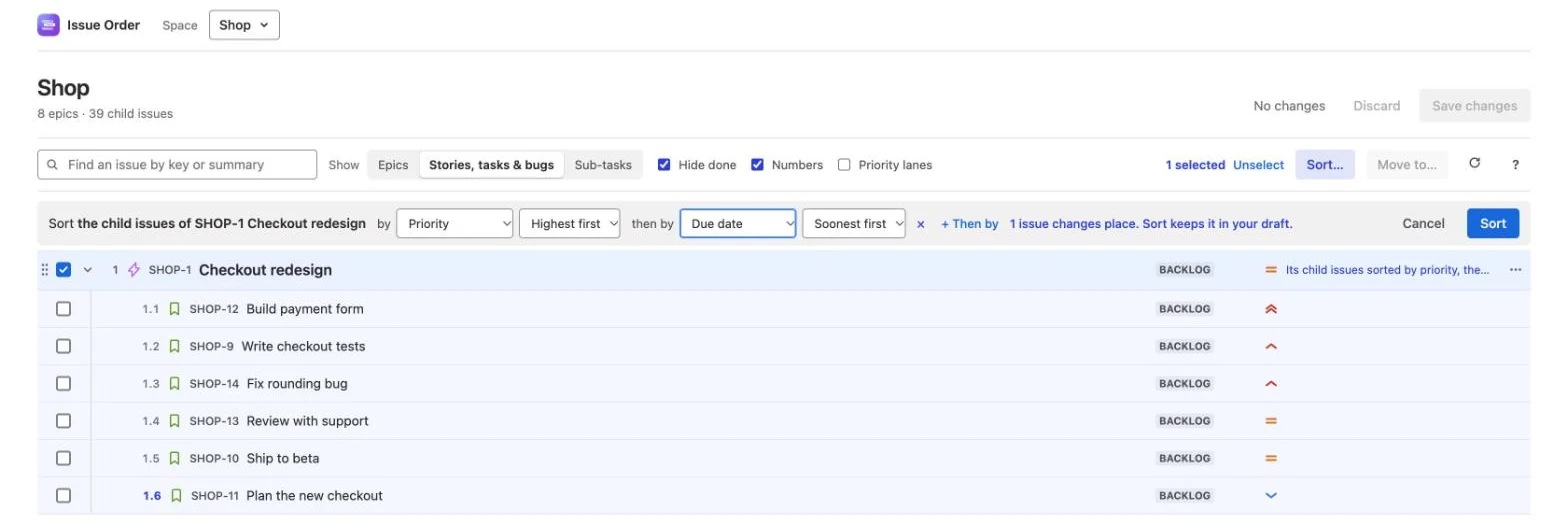
Sort puts a list in order by the fields you pick, up to three levels deep. Tick what you want sorted, click Sort…, and choose. Issue Order for Jira shows the result in the outline while you choose. Click Sort and the new order joins your draft; nothing changes in Jira until you click Save changes.
What Sort sorts
Sort works on what you have ticked. The bar’s first words always say what that is.
| Ticked | What is sorted |
|---|---|
| One epic | Its child issues: Sort the child issues of SHOP-1 Checkout redesign. Ticking an epic lights up its child issues, so you can see what Sort will act on. |
| Several epics | Each epic’s child issues, each list on its own: the child issues of n epics. The epics themselves don’t move. |
| One issue with sub-tasks | Its sub-tasks: the sub-tasks of SHOP-44 Tracking page. |
| Two or more issues | Only those issues: the n selected issues, in their own places. They trade places among the spots they already hold, and every issue you didn’t tick stays put. Ticked issues under different epics are sorted within each epic; none changes epic. |
| Nothing | Every epic’s child issues, each list on its own: the first words read the child issues in each of the n epics, ending that have them when some epics have none, or the child issues of the epic when the space shows only one. They’re a choice: pick the epics there to sort the epics themselves. With Hide done on, done epics are left out, with their child issues. |
Without an epic. With nothing ticked, put the cursor on the Without an epic heading (click it, or reach it with the arrow keys) and Sort sorts that list: the issues without an epic. The Under epics in other spaces heading works the same way. Move the cursor to any other row and Sort goes back to the child issues in each epic.
In the Reorder child issues pop-up, nothing ticked means the issue’s own list, such as the child issues of SHOP-1 Checkout redesign. When some of those child issues have sub-tasks, the first words become a choice, so you can pick the sub-tasks in each of the n child issues instead (…that have them when only some do). In an initiative’s pop-up, Sort opens on the child issues in each of the n epics, like the Apps page, and the initiative’s own list of epics is the other choice.
In a space with no epics, nothing ticked sorts the issues themselves: the issues. Pick the sub-tasks in each of the n issues in the first words to sort those instead.
One ticked issue with no sub-tasks gives Sort nothing to do. On the Apps page the bar then says Tick an epic to sort its child issues, or tick 2 or more issues to sort just those. In a space with no epics it says Tick an issue with sub-tasks to sort them, or tick 2 or more issues to sort just those. In the pop-up it says Untick it to sort all of SHOP-1’s child issues, or tick 2 or more to sort just those., or …all of SHOP-44’s sub-tasks… when the pop-up is open on a story. You can tick and untick rows while the bar is open; the bar and the preview follow.
The Sort bar
Sort… opens a slim bar between the toolbar and the outline. It reads as a sentence: Sort the child issues of SHOP-1 Checkout redesign by Priority Highest first then by Due date Soonest first.
- It opens on Rank every time, Jira’s default order, with no then by levels left from the last sort. Nothing is previewed and Sort is off until you pick a field: the note says Pick a field to sort by. So opening Sort never undoes your draft, priority lanes included.
- Pick a field after by, then which way in the list beside it. A field starts on its first direction. A field with only one direction shows it as plain text.
- + Then by adds a level, up to three. Each field can be used once. The × on a then by level removes it.
- Enter only picks. Pressing it in a list chooses the option and leaves the bar open, so you can check the preview. The Sort button applies the sort, by click or by Enter on the button.
- To close without sorting, press Esc, click Cancel, or click Sort… again. The preview goes and the outline is as it was.
The preview
While the bar is open, the outline shows the sorted order. A list being sorted opens to show it, even if it was folded. The note in the bar says where things stand:
| Pick a field to sort by. | The bar has just opened. Nothing is previewed until you choose a field after by. |
| Preview in the outline below. | Shown before there is anything to count, for example while a list is still loading. |
| Working out the preview… | The app is reading what the sort needs from Jira: your site’s priority order, or a field’s values. Sort waits until it’s done. |
| n issues change place. Sort keeps it in your draft. | How many issues the sort moves. It says sub-tasks when you sort sub-tasks, and epics when you sort the epics. |
| n issues go back to Jira’s order. | With Rank picked, on a list you changed in this draft: how many issues it puts back. |
| Already in this order. or Already in Jira’s order. | Nothing would move, so Sort is off. |
| Hidden done issues keep their places. | Added when something moves, Hide done is on and a list being sorted has done issues. Only the issues you can see are sorted, around the hidden ones. |
The count is the fewest issues that have to move. The longest run of issues already in the right order stays where it is, and only the rest change place. Moving the last issue to the top counts as one.
What you can sort by
Every space offers these. Each names its directions in its own words.
| Sort by | Directions |
|---|---|
| Rank | Jira’s default order, the only direction. It stands alone; see Rank. |
| Priority | Highest first or Lowest first, in the order your Jira site lists its priorities. |
| Due date | Soonest first or Latest first. |
| Overdue | Overdue first or Overdue last. Overdue means past its due date and not done; due today isn’t overdue yet. The overdue issues move as one group, so add a then by level to order them within it. |
| Status | In progress, then to do, then done or Done, then to do, then in progress. It goes by status category, so two statuses in the same category tie. |
| Created | Oldest first or Newest first. |
| Updated | Least recent first or Most recent first. |
| Resolved | Earliest first or Latest first. Unresolved issues have no value. |
| Summary | A to Z, Step 2 before Step 10 or Z to A. Numbers compare as numbers, and capitals and accents don’t count. |
| Key | Lowest number first or Highest number first. Keys from different spaces group by space key first. |
This space’s fields
Below those, the list has a group headed This space’s fields. The app reads them from Jira’s edit screens, for one issue of each work type in the lists you are sorting, so it offers the fields you can set there. Start dates, end dates and story points come first when the space has them, then the rest A to Z.
| Field type | Directions |
|---|---|
| Numbers, such as Story Points | Lowest first or Highest first. |
| Dates and date-times, such as Start date | Earliest first or Latest first. |
| Versions, such as Fix versions | Earliest release first or Latest release first, in the order Jira lists the versions. |
| Choice fields, one choice or several | In the field’s order or Reverse order, following the order of the field’s options in Jira. |
| Components and labels | A to Z or Z to A. |
- A choice field with one option sorts one way. Flagged, for example, offers only Flagged first. Reversed it would do the same, because issues with no value always go last.
- A field with several values, such as two fix versions, counts by its first value in the field’s own order (A to Z for components and labels), whichever way you sort.
- A value the field no longer offers, such as an archived version, counts as no value.
- Never offered: fields that hold people, such as Assignee and Reporter, and free-text fields.
The list follows what you are sorting: sub-tasks can have other fields than stories, and each space has its own. If a level’s field isn’t offered for what you are sorting now, that level is dropped; with none left, the bar goes back to Rank.
Values for these fields, and for Updated and Resolved, are read from Jira the first time a level needs them and kept until you refresh. If a field can’t be read, the app says Story Points couldn’t be read from Jira, so it leaves the issues in their order.
Then by: up to three levels
Levels are compared in turn, and the first one that tells two issues apart decides. Status, then Priority, then Due date puts work in progress first, orders each status by priority, and orders equal priorities by due date.
- No value always goes last, whichever direction you pick. Issues with no due date stay at the bottom with Soonest first and with Latest first.
- Ties keep the order they are in now, in either direction. Order a list by hand, then sort it by Priority, and your order survives within each priority.
Rank: back to Jira’s order
Rank is the order the list had in Jira when the app read it. Choosing it removes the then by levels and hides + Then by, because Rank has no ties to break.
Use it to take back the order you gave a list in this draft, by sorting, by dragging or by priority lanes: the note says n issues go back to Jira’s order. Issues you moved in from another epic stay in the list, because a move is a change of its own. With Hide done on, hidden done issues keep their places, and the list keeps a note, such as Its child issues back in Jira’s order, n moved.
After you sort
The bar closes, and each sorted epic stays open so you can see its new order. A sorted list gets one note rather than a note on every row:
- on an epic’s row: Its child issues sorted by priority, then due date, n moved
- on an issue’s row, for its sub-tasks: the same words, Its child issues sorted by priority, n moved
- for the epics, in the header: Epics sorted by priority
- on the Without an epic heading: Sorted by priority
A second direction is named in brackets, as in sorted by priority (lowest first). Sorting ticked issues adds no list note; each moved row gets its own instead, such as Moved up from n. Drag an issue in a sorted list afterwards and the list’s note gives way to notes on the rows that moved.
To take a sort back, click the × on its note, choose Undo the sort from the epic’s ••• menu, or press ⌘ Z (Ctrl Z on Windows). Review and save covers the rest of the draft.
Sort and your other changes
Sort starts from each list as it is in your draft, including issues you dragged or moved in. The sort replaces that list’s order; your moves between epics stay. One save writes everything.
While the bar is open, the outline shows the preview, so other edits wait. A drag, Discard or Save changes gets Sort or cancel the sort first., and Review can’t be turned on. The other way round, Sort… doesn’t open while Review is on.
When Sort is off
Lists with more than 1,000 issues
The app shows the first 1,000 issues of a longer list and says so: Some lists have more than 1,000 issues. The first 1,000 are shown, and Sort is off for those lists. Sorting only such lists gets This list has more than 1,000 issues, so Sort is off for it. Sorting them together with other lists sorts the others and says Lists with more than 1,000 issues were left as they are. See Limits.
Permissions
Sorting changes Rank, which needs the Schedule issues and Edit issues permissions in the issues’ space. Without them, Sort stops with You can’t reorder issues in space. It needs the Schedule issues and Edit issues permissions. The admin guide has the details.
While the app is busy
Sort… is off while a save or a refresh runs, while Review is on, after the order changed in Jira, until you refresh, and on a site where Jira’s ranking isn’t available to you (see the Admin guide). If sorting doesn’t do what you expect, see Help and support.