
Move to another epic
Give ticked issues a new epic, in this space or another, without dragging them there.
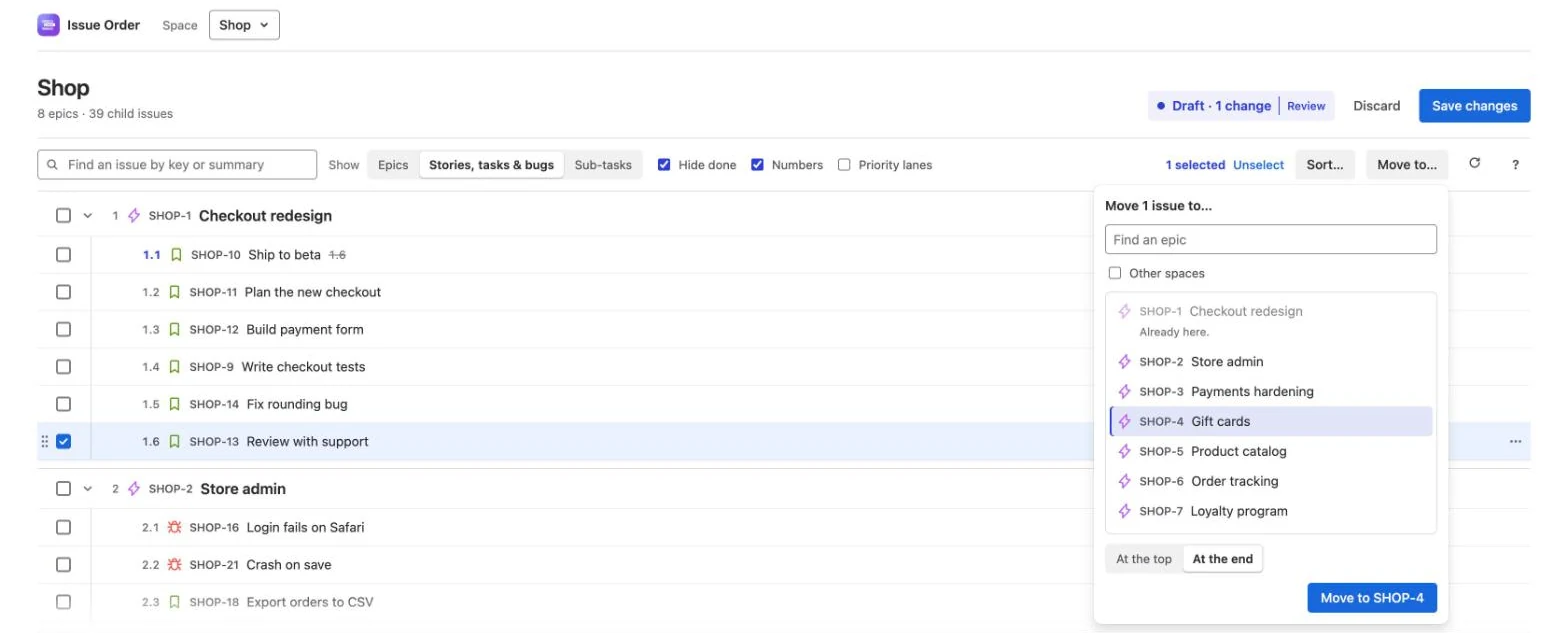
In Issue Order for Jira, Move to… gives the ticked issues a new parent without dragging them there. Child issues go under another epic, in this space or another, or to Without an epic; sub-tasks go under another issue in the same space. They land at the top or the end of the new parent’s list. Like every change, the move waits in the draft: nothing changes in Jira until you press Save changes.
- Tick the issues (see Select and drag issues).
- Click Move to… in the toolbar (Move 3 to… with three ticked), or choose Move to… in a row’s ••• menu.
- Choose the new parent in the list, or type to find it.
- Choose At the top or At the end, the default.
- Click the button, which names your choice: Move to SHOP-4.
Opening it
- The toolbar button moves what’s ticked. With nothing ticked, it opens nothing, and the status line says Tick the issues to move first: click a row, or press a checkbox and sweep down.
- A row’s ••• › Move to… moves that row. If the row is ticked along with others, it moves all the ticked issues; if it isn’t ticked, the ticks switch to it alone.
- One level at a time. Ticks hold one level, so a move is all child issues, all sub-tasks, or all epics.
- Not while something else is going on: while Review is showing, while the Sort bar is open, and during a save or a refresh.
Esc or a click outside the picker closes it and changes nothing. From the keyboard, the find box has the cursor when the picker opens: press Tab until you reach the list, choose with ↑ and ↓, then Tab on to the button and press Enter. Once a choice is made, Enter in the find box moves the issues too.
What the picker offers
The heading counts what you are moving, Move 1 issue to… or Move 3 issues to…. What it offers depends on the level:
| You move | It offers | The find box |
|---|---|---|
| Child issues | This space’s epics, then Without an epic · space. With Other spaces, epics from every space you can see. | Find an epic |
| Sub-tasks | Stories, tasks, bugs and other standard issues in the same space. | Find an issue by key or summary |
| Epics | The level above epics, such as an initiative, on sites that have one. See Epics. | Find an initiative |
- Child issues, nothing typed: the space’s epics in the order the outline shows them, including any reorder you haven’t saved yet. Without an epic · Shop comes last: choose it to take the issues out of their epic. In the pop-up on an issue, where the space’s epics aren’t loaded, the epics come from Jira instead, most recently updated first.
- An issue from another space, listed under one of this space’s epics: the picker offers that issue’s own space’s epics, from Jira, most recently updated first, and Without an epic there. Tick Other spaces to choose another of this space’s epics.
- Typing asks Jira. The list reads Searching… for a moment. A full key, such as SHOP-4, finds that issue; other words match the start of words in the summary. Up to 50 results show, most recently updated first (see Limits). Without an epic isn’t listed while you search.
- Sub-tasks and epics always ask Jira. With nothing typed, the list shows the 50 most recently updated choices.
- Results from another space show that space’s name at the right.
The button reads Move, greyed, until you choose; then Move to SHOP-4, or Move to Without an epic.
At the top or At the end
At the end, the default, puts the issues after the last issue in the new parent’s list; At the top puts them before the first. Several arrive together, in the order they had in the outline.
To put them somewhere in between, move them, then drag them into place inside the new parent before you save. For an epic in this space, it opens in the outline to show them (see Drag).
A list with more than 1,000 issues shows only its first 1,000, so its end isn’t on screen and At the end is refused there with This list has more than 1,000 issues and only the first 1,000 are shown, so its end isn’t here. Drop them next to one you can see instead. Choose At the top instead, or see Limits.
Choices you can’t pick
A choice Jira would refuse is greyed, with the reason beneath it, and can’t be chosen. That way a move fails here, with a reason, rather than on Save.
- Already here. — the issues are already under it. This includes an issue in Under epics in other spaces when its own epic turns up in an Other spaces search.
- Jira’s rules, in the same words as a refused drop, such as Team-managed spaces keep parents and children in the same space. The full list is in What Jira allows.
- Permissions — You can’t change key’s parent: it needs the Edit issues permission in space., key can’t be moved: placing it needs the Schedule issues permission in space. or You can’t reorder issues in space. It needs the Schedule issues and Edit issues permissions.
When every choice is refused for the same reason, the picker says it once: None of these can take it. followed by the reason (them for several issues).
A choice stays open while at least one of the issues can go there. Choose it and those move; the rest stay where they are, and the status line names them: key stayed where it was: followed by the reason.
Other spaces
Company-managed spaces share epics, so a child issue can go under an epic in another company-managed space. Tick Other spaces to search every space you can see. With nothing typed, it lists the 50 most recently updated epics on the site; each one from another space shows its space’s name at the right.
- From a team-managed space, there is no Other spaces to tick. The picker says instead Space is team-managed, so this issue can only go under its own epics. (these issues for several).
- A team-managed epic in another space is greyed: Team-managed spaces keep parents and children in the same space.
- Sub-tasks never get Other spaces: Jira keeps them in their own space.
After the move, the issue leaves this space’s outline, since its new epic isn’t part of it, and a ghost line keeps its old place: SHOP-33 Gift card balance check, moved to APP-170 Mobile payments. When you save, it lands at the top or the end of that epic’s child issues, as you chose. From then on it is listed in this space’s Under epics in other spaces section whenever the outline reads it from Jira, for example after Refresh from Jira.
To bring such an issue back, tick it under Under epics in other spaces and move it to one of this space’s epics. Nothing can be moved into that section (see About the app).
Done epics and Hide done
With Hide done on, done epics aren’t offered, in this space’s list or in a search, Other spaces included. The outline hides done epics, so issues moved under one would drop out of sight. The same goes for done issues offered to sub-tasks.
When that leaves nothing to show, the picker says why: No open epics here. Done ones are hidden while Hide done is on., or for a search, Nothing matches “text”. Done ones are hidden while Hide done is on.
To move issues under a done epic, untick Hide done in the toolbar and open Move to… again.
Sub-tasks
Tick sub-tasks and Move to… looks for another issue in the same space to put them under. The find box reads Find an issue by key or summary, and with nothing typed the list shows the space’s 50 most recently updated standard issues. Epics aren’t offered: sub-tasks go under a story, task or bug.
You can also drag sub-tasks onto another issue in the outline (see Between issues, or onto one).
Epics
In the space’s list of epics, epics can only be reordered. Their ••• menu has no Move to…, and the toolbar button, with only epics ticked, says Epics can only be reordered here.
On a site with a level above epics, such as an initiative, the message goes on: To put one under a different initiative, open its current initiative’s ••• › Reorder child issues and use Move to… That pop-up lists the initiative’s epics, and Move to… on them searches for another initiative, with Other spaces ticked to begin with, since initiatives usually span spaces. A site without a level above epics has no initiatives, so there epics can only be reordered.
Where to open it shows how to open the pop-up on an issue.
What a move looks like
The picker closes, the new parent opens in the outline to show the issues, and they flash briefly. The header counts the change: Draft · 1 change.
- In the new list, each issue shows its new number in blue, its old one struck through, and a note with an ×: From SHOP-1 Checkout redesign. An issue taken out of its epic reads Moved out of SHOP-1 under Without an epic; one given an epic reads Was without an epic, or Was under APP-170 if it came from Under epics in other spaces.
- In the old list, a dashed ghost line keeps its place: SHOP-13 Review with support, moved to 4.4 in SHOP-4. Neighbours going to the same place share one line, 2 issues moved to SHOP-4 Gift cards, and a move to Without an epic reads SHOP-13 Review with support, moved out of its epic.
- Everything else renumbers quietly, in both lists, without a note.
A screen reader hears the move, for example SHOP-13 Review with support moved to 4.4. Not saved yet.
Changing your mind
- Move it again and the new parent replaces the old one. Move it back to where it started and the move is cancelled.
- Press the × on its note or on the ghost line to put it back where it was.
- Press ⌘/Ctrl + Z to undo your last change.
Nothing is written until you press Save changes. Then the app sets each issue’s new parent and ranks it where the draft shows it, so the epic’s child list, boards and backlogs follow. Review and save covers what a save does and what happens if part of it fails.