
Select and drag issues
Tick issues, then drag them to a new place or onto another epic. Each drop is checked before you let go.
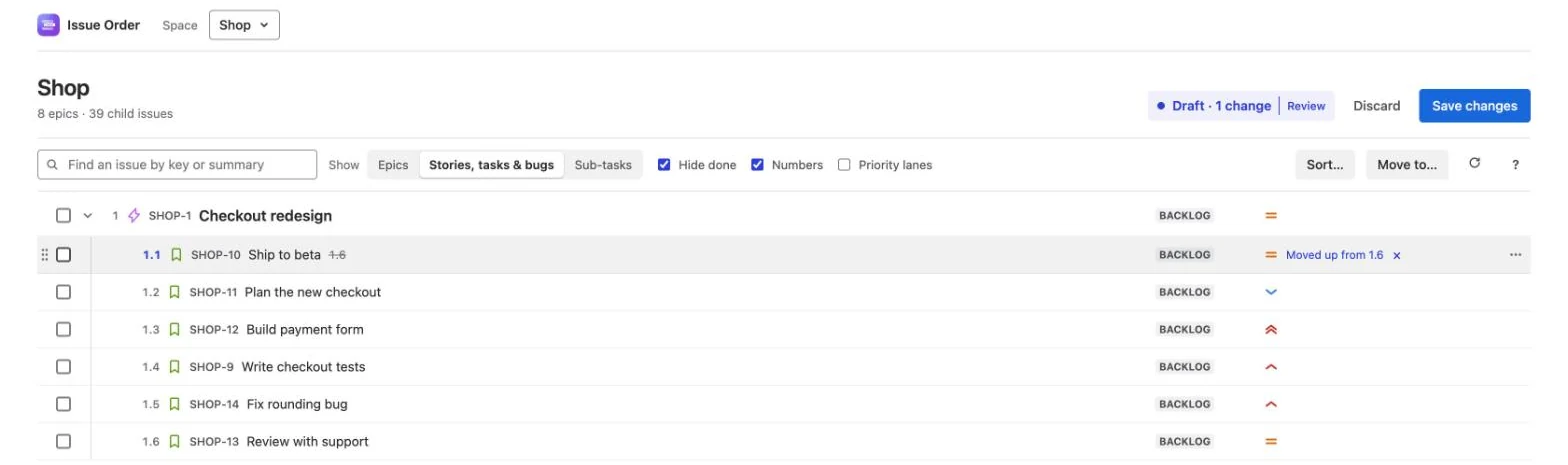
In Issue Order for Jira, tick the issues, then drag them where they belong. Drop between two issues to put them in that place, or onto an epic to move them under it. Several ticked issues move as one. Every drop is checked against what Jira allows before you let go, and nothing changes in Jira until you press Save changes.
Tick issues
Four ways. All but Shift with the arrow keys add to the ticks you already have:
- Click a row to tick it; click a ticked row to untick it. Anywhere on the row works except the fold arrow, the key (which opens the issue in a new tab) and the ••• button.
- Sweep — press an unticked row, or any checkbox, and drag up or down. Every row you pass on the same level is ticked. Press a ticked row’s checkbox and sweep to untick instead. Near the top or bottom of the outline, it scrolls for you.
- Shift-click a row to tick every row between the last one you clicked and this one.
- From the keyboard, Space ticks the row under the cursor, and Shift with ↑ or ↓ ticks the run from where you started to the cursor, replacing other ticks.
The toolbar then counts them, 3 selected, with an Unselect link, and the move button reads Move 3 to…. Esc, or a click on the empty space below the last row, clears the ticks too. Ticking never changes the draft.
- Ticks hold one level at a time: epics, child issues or sub-tasks. Tick a row on another level and the earlier ticks are cleared.
- A ticked epic lights up its child issues with a light tint, and a single ticked issue its sub-tasks. They are what Sort sorts.
- What you see is what moves. Ticked issues that you fold away, or that Find hides, drop out of the ticks.
- On a touch screen, a tap ticks or unticks a row, and you drag by the grip. A swipe on a row scrolls the outline and never ticks anything.
Drag
Press anywhere on a ticked row except its checkbox, or on any row’s grip, and move. The grip is the dotted handle at the left of a row; it shows when you point at the row or tick it. The drag starts once the pointer has moved a few pixels, so a plain click on a ticked row still unticks it.
- The grip of an unticked row drags just that issue, without ticking it.
- A ticked row, or its grip, carries every ticked issue.
While you drag:
- A card follows the pointer with the issue’s key and summary, or a count such as 2 issues, and where they will land: → 1.1, the number the first issue will get there, or → into SHOP-4, at the end over an epic.
- A line shows the spot between two issues, or the row you will drop into is highlighted. The issues you carry are dimmed.
- Folded rows open for you. Hold the pointer over a folded epic for a moment and it opens, so you can drop at an exact place inside it.
- The outline scrolls while the pointer is near its top or bottom edge, faster the closer you go.
- Esc cancels the drag, and so does letting go outside the app. Nothing moves.
Several issues land together, in the order they had in the outline, whichever one you grabbed, even if they were spread out or came from different epics. They stay ticked afterwards, so you can drag them again.
Between issues, or onto one
Where the pointer sits when you let go decides what happens. The rules keep an issue on its own level.
| Pointer over | When you let go |
|---|---|
| The top half of an issue on the same level | They go just above it. |
| The bottom half of an issue on the same level | They go just below it, after anything open under it. |
| An issue one level up: an epic when you carry child issues, or a story, task or bug when you carry sub-tasks | They move under it, to the end of its list, and it opens to show them. |
| An issue further down, such as a sub-task when you carry child issues | They go just below the child issue it sits under. |
| The Without an epic heading, carrying child issues | They lose their epic and go to the end of that list. |
| Nothing here yet. Drop issues here to move them in. under an empty epic | They move under that epic. |
So an epic dragged over another epic goes above or below it, never inside it. With priority lanes on, a drop into another lane also changes the issues’ priority, and the card says so: · becomes High.
What Jira allows
The app checks each drop against Jira’s own rules, so a move Jira would refuse is refused before it reaches the draft, with the reason:
| Rule | What the app says |
|---|---|
| Child issues go under an epic. | Child issues go under an epic. |
| Sub-tasks go under a standard issue, never straight under an epic. | Sub-tasks go under a story, task or bug, not an epic. |
| Sub-tasks stay in their own space, and always have a parent. | Jira keeps sub-tasks in their own space. or Sub-tasks always need a parent issue. |
| Without an epic takes only child issues from its own space. | Only child issues go in this list. or Issues without an epic stay in their own space. |
| Team-managed spaces keep a parent and its children in the same space. | Team-managed spaces keep parents and children in the same space. |
| Under epics in other spaces takes nothing in. | This list shows issues whose epic is in another space. To put an issue under such an epic, use Move to… with Other spaces. |
| Reordering needs the Schedule issues and Edit issues permissions in that space. | You can’t reorder issues in space. It needs the Schedule issues and Edit issues permissions. |
| A new parent needs the Edit issues permission, and placing the issue there needs Schedule issues. | You can’t change key’s parent: it needs the Edit issues permission in space. or key can’t be moved: placing it needs the Schedule issues permission in space. |
Company-managed spaces share epics, so a child issue may go under an epic in another company-managed space. Such an epic isn’t in this space’s outline, so use Move to… with Other spaces. Limits lists every rule in one place.
Refused drops
- You see it before you let go. The card’s title fades, the reason shows on it in red, and no line appears. Let go anyway and the same reason appears in the status line. Nothing changes.
- Some can go, some can’t. The card adds 1 issue can’t go there. Let go and the others move, while the status line names the ones that stayed: key stayed where it was: followed by the reason.
- The end of a very long list. A list with more than 1,000 issues shows only its first 1,000, so its end isn’t on screen, and a drop onto its parent, which would put the issues at the end, is refused: This list has more than 1,000 issues and only the first 1,000 are shown, so its end isn’t here. Drop them next to one you can see instead. See Limits.
- Dragging is off for a moment while Review is showing (Show everything to drag issues again. In Review you can undo changes or save.), while the Sort bar is open (Sort or cancel the sort first.), and during a save or a refresh. It’s also off while the banner The order changed in Jira while you were editing… is showing (press Refresh first), and on a site where Jira’s ranking isn’t available to you. In those cases a drag just doesn’t start, and the ••• menu offers only Open in a new tab and any undo items.
What a drop looks like
The issues you moved flash briefly, and the header counts the change: Draft · 1 change. Each moved issue shows its new number in blue, its old number struck through, and a note:
| You moved it | Its note |
|---|---|
| Up or down in its own list | Moved up from 1.6, Moved down from 1.1 |
| To another epic | From SHOP-1 Checkout redesign |
| Out of Without an epic | Was without an epic |
| Into Without an epic | Moved out of SHOP-1 |
| Out of Under epics in other spaces | Was under APP-170 |
Where an issue left its old list, a dashed ghost line keeps its place: SHOP-13 Review with support, moved to 4.4 in SHOP-4, 2 issues moved to SHOP-4 Gift cards, or SHOP-13 Review with support, moved out of its epic. Issues that only shifted to make room renumber quietly, without a note, so the marks show what you did and nothing else.
Moves from the keyboard
Dragging needs a pointer. Every move it makes is also in the ••• menu:
- Press Tab to reach the outline, then ↑ and ↓ to reach the issue.
- To move several, tick them with Space, or Shift with the arrow keys.
- Press Shift + F10, or the menu key, to open the row’s menu.
- Choose Move up, Move down, Move to top, Move to bottom or Move to… with the arrow keys, and press Enter.
Focus goes back to the outline, and a screen reader hears where the issues went, ending Not saved yet. The other keys are in About the app.
Changing your mind
- Press the × at the end of an issue’s note, or on a ghost line, to put it back where it was.
- Drag it again. A second move replaces the first, and moving an issue back to its old parent cancels the move.
- Press ⌘/Ctrl + Z to undo your last change.
Review and save covers Review, Discard and what a save writes.