
About the app
The layout, the words this guide uses, and the switches that change what the outline shows.
Issue Order for Jira shows a space as one numbered outline, in Rank order. Epics come first, numbered 1, 2, 3; each epic’s child issues and their sub-tasks sit under it. You rearrange the outline in place, and nothing reaches Jira until you press Save changes. This page explains what you see and the switches that change it.
The layout
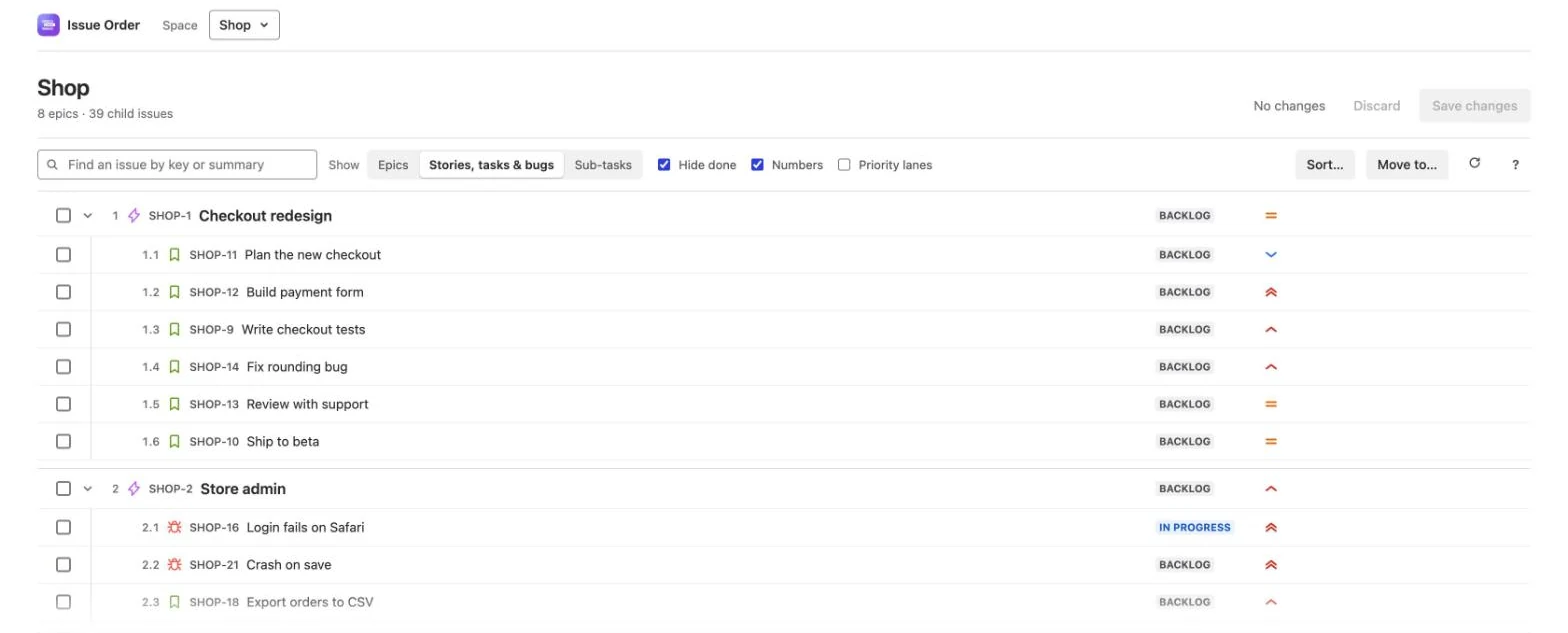
Top to bottom, on the Apps page:
- The app bar — Issue Order, then Space and a button with the space’s name, for switching spaces (see Choose a space).
- The header — the space’s name and what it holds, such as 8 epics · 39 child issues. The child issue count appears once every epic’s list has loaded, for example with Show set to the level under epics. With Show on Epics, the header shows only the epic count. The child issue count counts done issues too, and leaves out the issues without an epic.
- The draft, at the right of the header — No changes, or Draft · n changes with Review, then Discard and Save changes. See Review and save.
- Banners, only when there is something to say: unsaved changes from an earlier visit, a space you can see but not reorder, an order that changed in Jira while you edited, a list with more than 1,000 issues, or a site where Jira won’t rank issues for you, so the outline is read-only (see Help and support › Permissions).
- The toolbar — described below.
- The outline — one row per epic, child issue or sub-task. It scrolls inside the app; a soft fade along its bottom edge means there is more below.
- The status line at the bottom, where the app answers what you just did: Showing epics., the reason a move was refused, or Saved n changes. Boards and backlogs show this order too.
In the Reorder child issues pop-up on an issue, the header has a breadcrumb and Close instead, and the status line and the draft sit in the footer. Where to open it covers both.
The toolbar
| Control | What it does |
|---|---|
| Find an issue by key or summary | Narrows the outline to matching issues. See Find. |
| Show | How far the outline opens: epics only, down to child issues, or down to sub-tasks. See Show. |
| Hide done | Hides issues in a done status. On by default. See Hide done. |
| Numbers | Shows or hides the number column. On by default. See Numbering. |
| Priority lanes | Puts lists in priority order, grouped into lanes, as part of your draft: with Child issues the lists inside epics, with Child issues and epics the epics too. Off each time the app opens. See Priority lanes. |
| n selected and Unselect | Appear once you tick issues. Unselect clears the ticks and changes nothing else. |
| Sort… | Opens the Sort bar. See Sort issues. |
| Move to… | Gives the ticked issues a new epic or parent. It reads Move n to… with two or more ticked. See Move to another epic. |
| ↻ (Refresh from Jira) | Reloads every list from Jira. Your unsaved changes go back on top where they still fit. |
| ? (How it works) | A short note on how to tick, drag, move and sort, worded for where you are. |
When you come back to the app’s tab, it quietly reloads from Jira if it last read a minute or more ago, but only with nothing unsaved and nothing to undo, and not while a pop-up or the Sort bar is open.
A row
Left to right: a grip (shown when you point at the row or tick it), a checkbox, a fold arrow when the issue has something under it, its number, its work type icon, its key, its summary, its status and its priority. An unsaved change adds a short note, such as Moved up from 1.6. Point at a row and a ••• button appears at its right end, with the row’s actions.
Click a key to open that issue in a new browser tab; it doesn’t tick the row. In a narrow window, keys and statuses are left out to make room.
While the outline loads you see grey placeholder bars. A list you open shows Loading… until it arrives. If one can’t be read, its row gives the reason and a Try again link (Enter from the keyboard). A list past 1,000 issues ends with Only the first 1,000 … are shown here. See Help and support.
The words this guide uses
| Space | A Jira space. The app works in software and business spaces, company-managed or team-managed. |
| Epic | The top level of a space’s outline. |
| Child issues | The issues directly under an epic: stories, tasks, bugs and the space’s other standard types. Jira’s newer screens call issues “work items”, so on an epic they are listed in its Child work items panel. |
| Sub-tasks | The issues under a child issue, or under an issue without an epic. Team-managed spaces call them subtasks. |
| Level | Epics, child issues or sub-tasks. You tick and move one level at a time. |
| Rank | Jira’s own order. The epic’s child list, boards and backlogs all follow it, so it is what a save writes. |
| Draft | Everything you have dragged, moved or sorted but not saved. None of it reaches Jira until you press Save changes. |
The app uses the space’s own names for its levels. Show names each level after the space’s work types:
- The level under epics lists up to three type names, stories, tasks and bugs first, such as Stories, tasks & bugs. With more than three types it reads Issues.
- Sub-tasks are Sub-tasks in a company-managed space and Subtasks in a team-managed one.
- A business space with only tasks and sub-tasks reads Tasks and Sub-tasks. With no epics, it opens on its tasks, and the header counts them: n tasks.
Numbering
A number is an issue’s place in Rank order under its parent. Epics are 1, 2, 3; the child issues of epic 1 are 1.1, 1.2, 1.3; the sub-tasks of 1.2 are 1.2.1, 1.2.2. Point at a number to read Place in Rank order.
- Done issues count too. With Hide done on, a hidden issue keeps its number’s place, so 2.3 may be followed by 2.5. Hiding or showing done issues never renumbers anything.
- In the pop-up, the issue you opened it on isn’t a row; its own child issues or sub-tasks are 1, 2, 3.
- The sections at the bottom are numbered on their own, from 1 (see the next section).
- An unsaved change shows like a correction: the new number in blue, the old one struck through after the summary, and a note. Issues that only shifted because of it renumber quietly. Review and save explains the marks.
Untick Numbers to hide the number column and the struck-through numbers. Notes then read just Moved up or Moved down. The order and the draft don’t change.
Without an epic, and Under epics in other spaces
Below the epics, two headings collect the space’s child issues that no epic in the space holds. Click a heading to open or fold it. Its count appears once its list has loaded, and counts done issues too, like the header (1,000+ for a list past 1,000).
- Without an epic — the space’s standard issues that have no epic, numbered 1, 2, 3 in Rank order. Moving an issue in removes its epic; moving one out gives it one. Only child issues from the same space can go in.
- Under epics in other spaces — the space’s issues whose epic is in another space, which company-managed spaces allow. It appears only when there are some, and each row says which epic, for example Under APP-170 Mobile payments. You can reorder these issues and move them out to one of this space’s epics; nothing can be moved in. When the space has nothing else to show, this section opens by itself.
A space with no epics opens on its issues instead, numbered 1, 2, 3, with no Without an epic heading.
Show
Show sets how far the outline opens: Epics, then the level under them (Stories, tasks & bugs, for example), then Sub-tasks. Each choice opens every parent down to that level and loads its lists, and the status line confirms it, for example Showing sub-tasks.
- The first time, a space opens on its epics only. After that, a space with epics opens on the level you last chose in any space on that Jira site; your browser remembers it. A space without epics always opens on its issues.
- Opening or folding a row by hand switches Show off. No choice is highlighted until you pick one again.
- In the pop-up, Show uses general names: Child issues and Sub-tasks on an epic. It always starts on the issue’s own list.
- Only the levels the space has are offered. A space with no sub-task type has no Sub-tasks choice, and a list with only one level has no Show at all.
The two sections at the bottom stay open or folded as you left them, whatever you choose.
Hide done
Hide done is on by default, because you are usually here for the work still to do. It hides every issue whose status is in Jira’s Done category, at every level, and your browser remembers your choice.
- Numbers keep their places (see Numbering).
- A list whose issues are all done says so: All n are done. Untick Hide done to see them.
- Find never finds a hidden issue.
- Move to… leaves done epics out of its choices (see Move to another epic).
- Sorting and the ••• moves step over hidden issues and leave them in their places.
Untick it to see everything, done epics included.
Find
Type in the Find box to narrow the outline. It reads Find an issue by key or summary on the Apps page and Find in SHOP-1 in the pop-up.
- Words match anywhere in a key or a summary: check finds Plan the new checkout and Gift card balance check alike.
- A whole key, such as SHOP-9, finds that issue, or a summary that names it, but not SHOP-90.
- Matches keep their context. Each shows with the rows it sits under and everything under it, so finding an epic shows its child issues.
- Find searches what’s loaded. While it’s in use, the app loads the next level down: every epic’s child issues and the issues without an epic. Sub-tasks are found once their lists are loaded, for example with Show set to sub-tasks.
- With no match, the outline reads No issues match “text”.
- While Review is showing, Find doesn’t narrow the outline. Click Show everything first (see Review your changes).
Enter or ↓ moves you into the outline; Esc clears the box. Rows that Find holds open can’t be folded until you clear it. Ticked issues that Find hides drop out of the ticks.
Keyboard
The outline is one stop for Tab, and works like any tree or list. A highlight, the cursor, shows which row the keys act on.
| Keys | What they do |
|---|---|
| ↑ ↓ | Move the cursor. Home and End go to the first and last row, Page Up and Page Down ten rows at a time. |
| Shift + ↑ ↓ | Tick the rows from where you started to the cursor, replacing other ticks. Shift with Home, End, Page Up or Page Down does the same. |
| → | Opens a row; on an open row, moves to its first child. |
| ← | Folds an open row; on any other row, goes to its parent. |
| Enter | Opens or folds the row. On a Not placed yet row it places the new issues by priority; on a list that couldn’t load, it tries again. |
| Space | Ticks or unticks the row. |
| Esc | Closes the Sort bar if it’s open; otherwise clears the ticks. During a drag, cancels it. |
| Shift + F10, or the menu key | Opens the row’s ••• menu: Move up, Move down, Move to top, Move to bottom, Move to… and more. In the menu, ↑ ↓ choose, Enter picks and Esc closes it. On a sorted Without an epic or Under epics in other spaces heading, which has no ••• menu, it undoes that sort at once (⌘/Ctrl + Z brings it back). |
| ⌘/Ctrl + Z | Undoes your last change in the draft. ⇧⌘Z or Ctrl + Y redoes it. Not while you type in a box. |
Dragging needs a pointer; from the keyboard, every move is in the ••• menu (see Select and drag issues). Screen readers hear each row’s number, type, key, summary, status, priority and any unsaved change, and are told what each move did.
Light and dark
The app takes its colours from Jira, so it follows Jira into light or dark mode. When your system asks for reduced motion, the flash on a moved row is replaced by a still tint.
What the app keeps in your browser
The app has no server or database of its own: it reads and writes Jira as you, and keeps a few small things in your own browser, on your own machine. None of it is sent anywhere.
- Your switches: Hide done and Numbers.
- Your Show level and the last space you opened on the Apps page, for each Jira site.
- For priority lanes, when you last looked at each list and which new issues you have placed (issue keys only).
- The unsaved-changes safety net. While you have unsaved changes, the app keeps them (issue keys, priority names and sort names, never summaries) for each site, Jira account and starting point: a space on the Apps page, or the issue the pop-up opened on.
The safety net is what lets a closed tab, a reload or a crash cost you nothing. Come back and a banner reads You left unsaved changes here n minutes ago., with Restore unsaved changes and Discard them. Restoring puts your changes back where they still fit; where a list changed in Jira since, only your own moves go back. The kept copy is cleared when you save, discard or leave without saving, and dropped after 14 days.
Another browser starts fresh. A different browser or computer, a private window, or a browser that blocks site storage starts with the default switches and has no safety net. Clearing your browser data clears all of it.
Everything else lasts only while the app is open: your ticks, the Sort bar’s choices and which rows you opened. What it stores has the detail.